
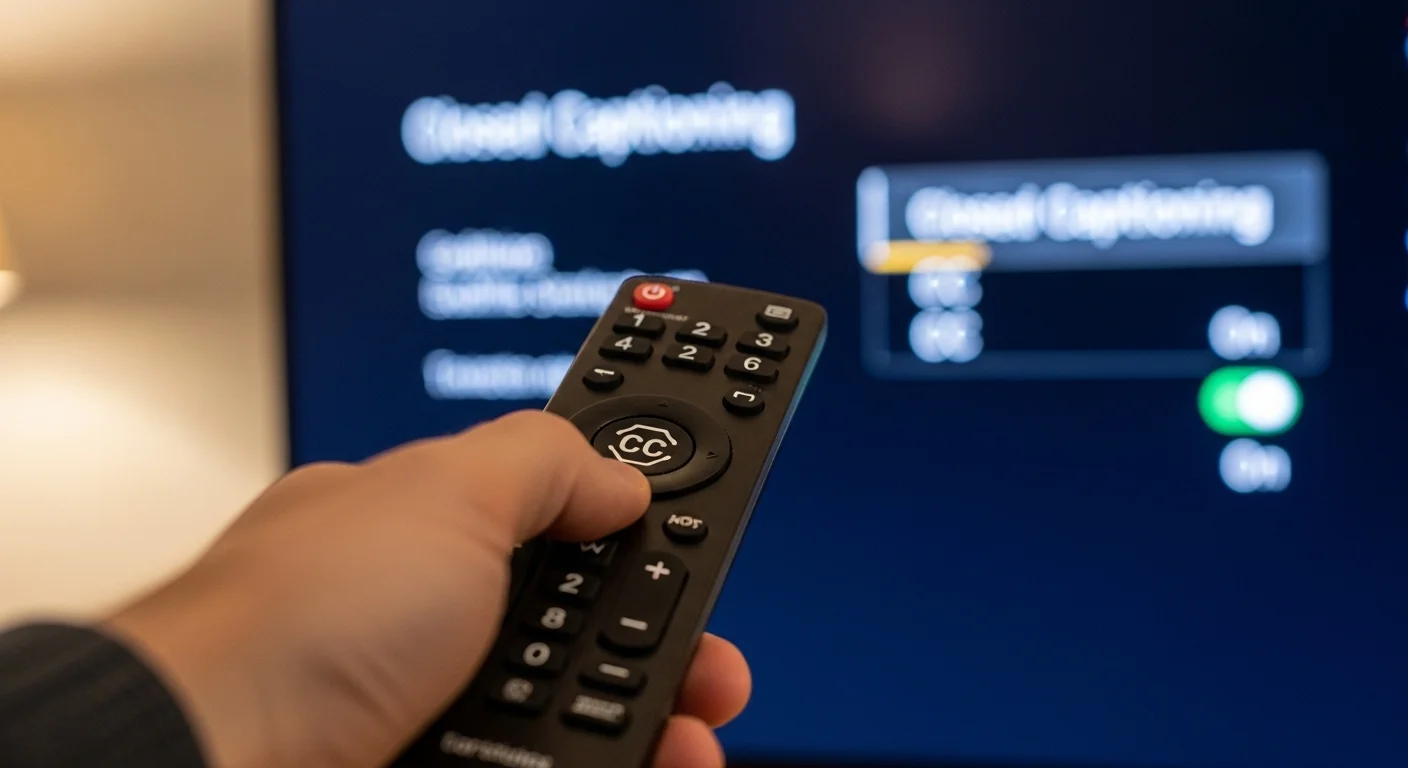
How to turn off closed captioning means disabling the on‑screen text overlay that displays spoken dialogue or audio descriptions during videos on TVs, streaming devices, computers, and mobile apps.
Closed captioning (CC) is designed for accessibility, but you can easily turn it off via the video player’s CC/Subtitles control, in the Accessibility/Caption settings of your device, or within each streaming app’s menu so text no longer appears on your screen while watching.
Whether you’re trying to declutter your screen, save your eyes from distracting overlays, or just enjoy the visuals without text, this deep, friendly guide walks you through every device and platform step‑by‑step — plus smart troubleshooting, common mistakes to avoid, and how to reset captions if they keep popping back on.
What Closed Captioning (CC) Actually Is — and Why You Might Want It Off

Closed captioning is text that displays what’s being said — and sometimes audio cues — so you can follow dialogue even without sound. It’s essential for accessibility, but many of us prefer a cleaner screen while watching entertainment or background videos.
Reasons to turn CC off:
✔ Visual clutter distraction
✔ Language or translation mismatch
✔ Personal viewing preference
✔ Automatically enabled captions you don’t need
How to Turn Off Closed Captioning on YouTube (Desktop & Mobile)
YouTube Web (Browser)
-
Hover over the playing video.
-
Click the Settings (⚙️) icon.
-
Select Subtitles/CC → choose Off.
YouTube Mobile (Android/iOS)
-
Tap the video screen to show controls.
-
Tap the CC icon.
-
Choose Off to disable captions.
YouTube TV & Streaming Devices
-
While a video plays, reveal the playback bar.
-
Look for No CC or CC icon under the video and select Off.
-
If not visible, press your remote’s options button.
Turning Off Closed Captioning on Netflix
On Smart TVs & Devices
-
Open the Netflix app.
-
Start playing a show or movie.
-
Access Audio & Subtitles from the menu.
-
Set Subtitles/CC to Off.
In‑Playback (TV Remote)
-
Press the Up arrow or remote’s subtitle/CC button to open subtitle options.
-
Select Off.
Note: Steps vary slightly by device and Netflix version, but Subtitles/CC off will remove captions.
How to Turn Off Closed Captioning on Roku

Quick In‑Playback Method
-
Start any video or channel.
-
Press the Star (⋆) button on your Roku remote.
-
Choose Closed Captioning → toggle to Off.
System‑Wide Method (Accessibility Menu)
-
Home → Settings.
-
Accessibility → Captions Mode.
-
Set to Off.
💡 Tip: If captions return later, the system setting often overrides individual apps.
Turning Off Closed Captions on Apple TV
-
Go to Settings → Accessibility.
-
Choose Subtitles & Captioning.
-
Turn off Closed Captions + SDH.
Within streaming apps on Apple TV, you can also toggle CC Off from the in‑playback menu.
How to Turn Off CC on Amazon Fire TV / Firestick

-
While video plays, press the Menu button on your remote.
-
Select Closed Captions / Accessibility.
-
Set captions to Off.
If closed captions keep returning, ensure Device Accessibility > Closed Captioning is disabled too.
Brand New Caption Ideas (for Social Media, YouTube, etc.):
- “Subtitles ruining your vibe? Here’s how to turn off closed captioning in 2026 🔥”
- “No more annoying captions! Quick guide to turn off closed captioning on Netflix & more ⚡”
- “Clean screen loading… Learn how to turn off closed captioning instantly 🎥”
- “Tired of reading while watching? Fix closed captioning in 2026 🚫”
- “Pro tip: Turn off closed captioning and enjoy pure entertainment ✨”
- “Closed captions won’t go away? This 2026 hack fixes it in seconds 😌”
- “Binge better: Master how to turn off closed captioning on any device 🛠️”
- “Subtitles off = immersion on! 2026 guide inside 🌟”
- “Stop the scrolling text! How to turn off closed captioning forever 🔇”
- “Level up your watch party: Turn off closed captioning like a pro in 2026 🎬”
How to Turn Off Closed Captioning on Samsung & Smart TVs
Samsung Smart TV (General)
-
Press the Menu / Home button.
-
Go to Settings → Accessibility.
-
Turn Off Captions / Subtitles.
Other Smart TV Brands
The process is similar: within the Settings > Accessibility > Caption area, set CC to Off.
How to Turn Off CC on Mobile & Tablet (iPhone/Android)
iPhone / iPad
-
Settings → Accessibility.
-
Subtitles & Captioning → disable Closed Captions + SDH.
Android
-
Settings → Accessibility.
-
Caption / Subtitles → toggle Off.
This disables system‑level captions so apps won’t show them automatically.
Why Closed Captioning Keeps Turning Back On (and What to Do)
If CC keeps reappearing even after turning it off:
🔹 You changed captions in one app, but system settings are still enabled.
🔹 Some shows have forced subtitles (open captions) that cannot be turned off.
🔹 App or device glitches may cause captions to re‑enable. Try re‑starting or updating the app/device.
Closed Captioning vs. Subtitles vs. SDH — What’s the Difference?
-
Closed Captioning (CC): Shows dialogue PLUS audio cues for sound effects (e.g., [phone rings]).
-
Subtitles: Typically only display spoken words (no sound cues).
-
SDH (Subtitles for the Deaf & Hard of Hearing): A hybrid with accessibility features.
Turning CC Off may still leave subtitles on if you’re in the subtitle mode of an app — so be sure you’re selecting the right option.
Accessibility Considerations — When Not to Turn CC Off
While many of us love a clean screen, it’s important to remember:
💛 CC helps those with hearing loss or language challenges.
💛 Some people rely on captions for comprehension.
💛 Consider leaving CC enabled on shared devices if others may need it.
Use this knowledge responsibly — not everyone finds captions distracting.
Top Mistakes People Make When Trying to Turn Off CC
🚫 Only turning off in one app — but system settings remain on.
🚫 Forgetting to check mobile Accessibility Settings.
🚫 Assuming all videos obey CC toggles — some have burned‑in text.
🚫 Not testing with multiple apps; each app often has its own CC control.
Fast Troubleshooting Checklist (Save This!)
✔ Restart the video/app
✔ Check system accessibility caption settings
✔ Update your app and device
✔ Try a different show or video
✔ Clear app cache (mobile or Smart TV)
✔ Look for forced / open captions
Following this checklist fixes most CC issues quickly.
Frequently Asked Questions (FAQ)
Q1: Why won’t closed captions stay off?
A: System accessibility settings or app preferences may re‑enable them. Check both app controls and device accessibility settings.
Q2: Can I turn off captions for only one app?
A: Yes — most apps let you toggle CC off only for that app, separate from system settings.
Q3: Are captions the same across all devices?
A: No — browsers, TVs, mobile apps, and streaming devices have their own CC controls.
Q4: Why do captions still show in some shows?
A: Some videos have subtitles burned in (open captions) — these cannot be turned off.
Q5: Does turning CC off affect hearing accessibility?
A: Turning CC off stops text display but doesn’t affect audio accessibility features.
Q6: How do I reset caption preferences?
A: Update apps, clear caches, or reset caption toggles in Accessibility settings.
Q7: Do subtitles and CC differ on Netflix?
A: Yes. Subtitles may only show dialogue while CC includes additional audio cues.
Q8: Can I make CC default off on all devices?
A: By disabling CC in device accessibility settings, you help make captions default off.
Expert Tips: Best Practices for Managing Closed Captioning
✨ Always check both app and device settings — they’re independent controls.
✨ For streaming devices, update your OS first.
✨ Restart after changing settings to ensure they stick.
✨ Keep accessibility in mind — captions help many people.
Conclusion — Freedom From On‑Screen Text (When You Want It)
Now you know how to turn off closed captioning on virtually every device and platform — from YouTube and Netflix to Roku, Apple TV, Fire TV, smart TVs, and mobile phones. You’ve got troubleshooting steps, expert insights, and clarity on system vs app captions so nothing sneaks back on unexpectedly.
Remember: captions are there for accessibility, but your viewing experience matters too. Next time CC pops up unexpectedly, you’ll know exactly where to go and what to toggle — and you’ll enjoy your shows on your terms, without text crowding your screen.