
If you’ve ever been annoyed by subtitles popping up on your LG TV at the wrong time, you’re not alone. Closed captions (CC) are text displays of the spoken dialogue, background sounds, and other audio cues in shows and movies.
While they’re helpful for accessibility, there are times when you just want to enjoy your favorite series or movie without the extra text clutter. Luckily, learning how to turn off closed caption on LG TV is easier than you think—and we’ll guide you step by step!
In this guide, you’ll find everything from simple on-screen instructions to emotional insights about media consumption, Instagram-ready captions for your TV nights, and tips to optimize your viewing experience. Let’s dive in! 💖
What Are Closed Captions and Why They Appear
Closed captions are textual representations of audio content on your TV. They include dialogue, music cues, and even sound effects. LG TVs automatically enable CC for accessibility, but sometimes these captions appear when you don’t want them.
Key benefits of CC:
-
Accessibility for hearing-impaired viewers
-
Understanding dialogue in noisy environments
-
Learning new languages
Drawbacks when unnecessary:
-
Distraction from the visual experience
-
Blocks scenic views or cinematic moments
-
Can ruin the aesthetic for cozy TV nights
How to Turn Off Closed Caption on LG TV (Step-by-Step)
Here’s the most direct way to turn off closed captions:
-
Press the Settings button on your LG remote.
-
Navigate to All Settings → Accessibility.
-
Select Closed Captions (CC).
-
Toggle Off.
Voilà! The subtitles are gone, leaving a clean, immersive screen. ✨
Using the Remote Control to Disable CC
Sometimes the easiest way is through your remote:
-
Look for the CC button (if available).
-
Press it once to toggle captions on/off.
-
On some models, press Settings → Accessibility → CC.
Tip: For older LG TVs, the CC function may be under Options → Subtitles → Off.
Accessing LG TV Settings for Closed Captions
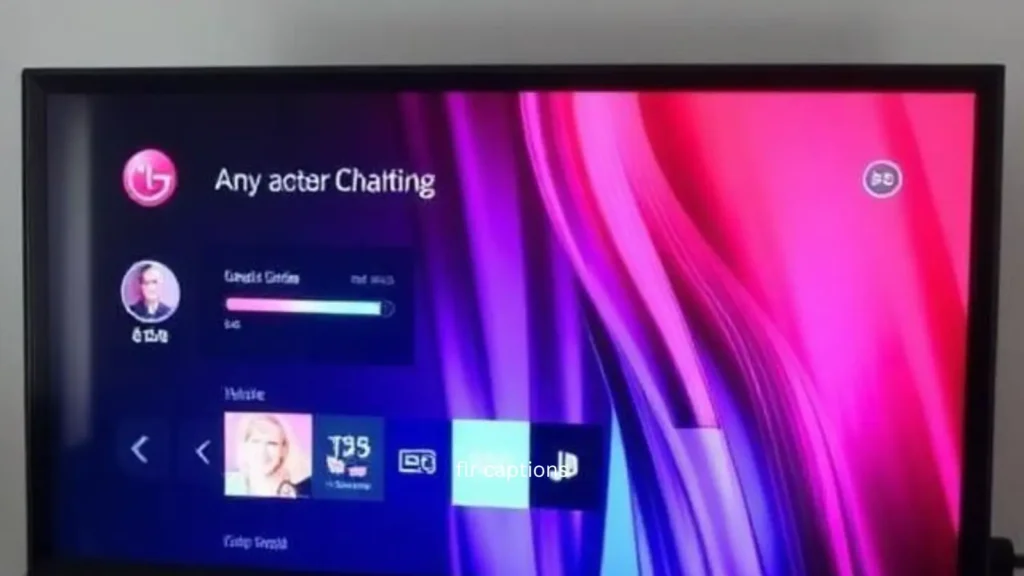
LG Smart TVs offer multiple ways to manage captions:
-
Home → Settings → Accessibility → Caption
-
Settings → General → Accessibility → Caption
-
Adjust Font Size, Color, and Background for optimal viewing
-
Ensure “Auto Display” is disabled to prevent captions from appearing automatically
Turning Off Captions via Accessibility Menu
Accessibility menus are designed for viewers who need CC, but you can use them to turn it off too:
-
Press Settings → Accessibility
-
Select Closed Captions
-
Toggle OFF
Pro Tip: Some streaming apps override TV CC settings—check your app-specific settings as well.
Smart TV Apps and CC Settings
Popular apps like Netflix, Hulu, Disney+, and Prime Video have their own caption settings:
-
Netflix: Settings → Audio & Subtitles → Turn off CC
-
Hulu: Settings → Captions → Off
-
Disney+: Playback settings → Subtitles → Off
Even if your LG TV CC is off, these apps may still display captions. Always double-check.
Temporary vs. Permanent CC Settings
You can choose:
-
Temporary: Captions appear only during the current show or session
-
Permanent: CC stays off for all content until you manually turn it on
Tip: Permanent settings save time and frustration for binge-watchers. 🍿
Why Your CC Won’t Turn Off and How to Fix It
Common reasons CC stubbornly stays on:
-
App-specific subtitle settings
-
Firmware updates resetting preferences
-
Incorrect remote button sequences
Fixes:
-
Update your LG TV firmware
-
Reset app settings
-
Toggle CC in both TV and app menus
One-Word Captions for Your TV Night 🍿
Sometimes, simple words say it all. Perfect for Instagram stories or TikTok posts:
-
Cozy 🛋️
-
Binge 🍫
-
Chill ❄️
-
Popcorn 🍿
-
Lights ✨
-
Mood 😎
-
Love ❤️
-
Pause ⏸️
-
Screen 🎬
-
Relax 🧘♀️
-
Escape 🌌
-
Happy 😊
-
Quiet 🤫
-
Romantic 💏
-
Comfy 🛋️
-
Alone 🫂
-
Together 💕
-
Weekend 🌸
-
Friday 🎉
-
Night 🌙
Short, Fun Captions for Social Sharing
Add personality to your TV night:
-
“Netflix called, I answered 📞🍕”
-
“Couch > Everything 🛋️✨”
-
“Just one more episode… okay, five 😅”
-
“Zero plans, max chill 🌙”
-
“Lights off, vibes on 🌌”
-
“Popcorn in one hand, remote in the other 🍿”
-
“Tonight’s agenda: me, you, and the screen ❤️”
Cute Captions to Capture Cozy TV Moments 🥰
-
“Snuggle season is here 🧸💖”
-
“Movie night, heart full ❤️”
-
“Cuddles & classics 🛋️🎬”
-
“Sofa + Snacks = Happiness 🍫”
-
“Your hand in mine, TV on pause 💏”
-
“Warm blankets, warmer hearts 🫂”
-
“Plot twist: I love you more 💕”
-
“Cozy corners, endless smiles 😊”
Funny Captions That Make Watching TV Hilarious 😂
-
“My remote has commitment issues… just like me 😜”
-
“This is my cardio: popcorn lifting 🍿💪”
-
“Caution: Highly bingeable content ahead ⚠️”
-
“Plot twist: I’m the snack 🥨”
-
“Relationship status: committed to this series ❤️”
-
“Laughing alone, but in stereo 😂”
Seasonal or Occasion-Based Captions
Winter: “Snow outside, movies inside ❄️🎬”
Summer: “Poolside + screen vibes 🌊📺”
Valentine’s Day: “Love, popcorn, repeat ❤️🍿”
Halloween: “Frights & film nights 🎃👻”
Christmas: “Cozy in lights, movies in hearts 🎄✨”
Romantic & Emotional TV Night Captions ❤️
TV nights aren’t just about screens—they’re emotional experiences. Couples often bond over shared shows:
-
“You, me, and the couch… forever 💏”
-
“Every episode feels better with you ❤️”
-
“Our love story on screen and off 💖”
-
“Holding hands, sharing laughs 🫂”
-
“Date night done right 🍷🎬”
Psychology behind it: Shared media triggers oxytocin, enhancing bonding, intimacy, and emotional connection. This explains why cozy TV nights strengthen relationships.
Platform-Specific Captions: Instagram, TikTok, and More
-
Instagram Stories: “Tag your binge buddy 🫂❤️”
-
Instagram Feed: “Our favorite series, our favorite person 💕”
-
TikTok: “POV: You’re cuddled up watching the best show 🛋️✨”
-
Facebook: “Couch dates are the best dates 💏🍿”
Caption-Writing Framework: Connect Emotionally
-
Hook: Grab attention with an emoji or playful line
-
Emotion: Describe feelings (cozy, romantic, funny)
-
Action: Encourage engagement (“Tag your partner ❤️”)
-
Relatability: Make it universal
-
Close: End with a visual or sentiment
Social Media Engagement Strategy for Sharing TV Moments
-
Post short, snappy captions
-
Use relevant hashtags
-
Encourage tagging friends/partners
-
Post at peak evening hours
-
Combine with trending audio on TikTok
-
Share behind-the-scenes moments of your binge
18. Mistakes to Avoid When Using or Turning Off CC
-
Forgetting app-specific caption settings
-
Leaving default CC on for a cinematic moment
-
Over-customizing font & color, making it hard to read
-
Ignoring firmware updates
Best Hashtags for TV Captions & Sharing #Vibes
#NetflixAndChill #MovieNight #CozyVibes #TVTime #BingeWatch #CoupleGoals #LoveAndScreens #PopcornMood #TVAddict #CuddleSeason #ScreenLove #RomanticNights #CouchVibes #FilmLover #TVNight
FAQ: Everything You Need to Know About LG TV CC
Q1: How do I turn off closed captions on my LG Smart TV?
A: Settings → All Settings → Accessibility → Closed Captions → Off
Q2: Why are captions still showing after turning off?
A: App-specific CC settings may override TV settings. Check each app.
Q3: Can I permanently disable CC on LG TV?
A: Yes, toggle CC off in Accessibility and disable auto-display in all apps.
Q4: Can I adjust caption font size or color?
A: Yes, Settings → Accessibility → Closed Captions → Customize.
Q5: Do CC settings differ by streaming app?
A: Absolutely, apps like Netflix, Hulu, and Disney+ have separate controls.
Q6: Why does my LG TV keep enabling CC?
A: Firmware updates may reset settings; update firmware and double-check.
Q7: Can I disable CC for one show only?
A: Yes, toggle CC off within the streaming app during playback.
Q8: Does turning off CC affect accessibility features?
A: Only the subtitles; other accessibility features remain active.
Q9: Can CC be used for learning languages?
A: Yes, CC helps understand dialogue and improve language skills.
Q10: Do older LG TVs have different CC controls?
A: Yes, older models may require Options → Subtitles → Off.
Conclusion
Turning off closed captions on your LG TV is more than a simple tech tweak—it’s about reclaiming your viewing experience. Whether you’re enjoying a solo binge, a cozy couple’s night, or sharing your favorite shows on social media, having control over captions ensures your entertainment is immersive and distraction-free. 🌙
Remember: adjust app-specific settings, toggle accessibility menus, and enjoy the clean screen. And if you’re posting those cozy, romantic, or funny TV-night moments online, use our caption strategies and hashtags to boost engagement.
Next time you want a distraction-free cinematic experience, just remember: knowing how to turn off closed caption on LG TV is your secret to ultimate TV bliss. ✨🍿

“Emily Carter is a branding and content strategy expert who creates engaging insights on marketing, storytelling, and brand development to help businesses stand out.”